The same Z program turns the same amount field into a string with WRITE … TO, yet the file one user's run produces shows 1.234.567,89 and the file another user's run produces shows 1,234,567.89. Not a single line of code differs. After reading this, you will be able to tell where the difference comes from (the user defaults and SET COUNTRY), why the string template |{ amt }| always gives 1234567.89, and which format to choose for files and interfaces. The basis is the ABAP Keyword Documentation, release 7.58. The users and values in the examples are fictional; the results apply the documented rules by hand and were not run on an SAP system.
WRITE … TO takes its separators from the user defaults
The predefined output format of WRITE … TO depends on the data type and on user-specific default settings. A packed number (p) keeps its defined decimal places and gets a decimal separator, and if the target field is long enough it also gets thousands separators. Which characters are used is decided by the formatting setting of the language environment.
At the start of an internal session, the formatting setting is taken from the Defaults in the user master record of the current user. The number format has three values.
- Blank: comma as the decimal separator, period for thousands.
1.234.567,89 - X: period as the decimal separator, comma for thousands.
1,234,567.89 - Y: comma as the decimal separator, blank for thousands.
1 234 567,89
The user default is stored in column DCPFM of table USR01 and uses the same domain (XUDCPFM) as column XDEZP of table T005X, which holds the country-specific formats. Administrators change it in SU01, and users change their own in SU3 (System > User profile > Own data). SAP's documentation calls this default "the format for decimals". The same default also applies to the numbers shown in dynpro screen fields.
In the screen example below, USER_A has the blank value and gets 1.234.567,89, while USER_B has X and gets 1,234,567.89. There are three values to choose from, and which one applies is stored separately for each user.
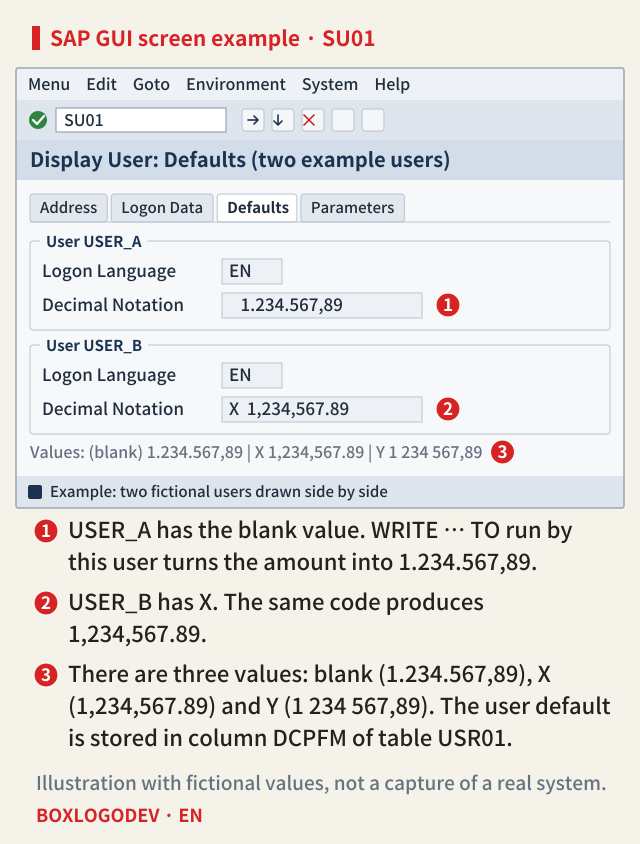
One value, 1234567.89, different results by code
Take one fictional amount variable and turn it into a string in three ways.
DATA amt TYPE p LENGTH 8 DECIMALS 2 VALUE '1234567.89'.
DATA txt TYPE c LENGTH 20.
DATA s1  TYPE string.
DATA s2  TYPE string.

WRITE amt TO txt.                 " (1)
s1 = |{ amt }|.                   " (2)
s2 = |{ amt NUMBER = USER }|.     " (3)
Applying the documented rules gives these results.
| Code | USER_A (blank) | USER_B (X) |
|---|---|---|
(1) WRITE amt TO txt. | 1.234.567,89 | 1,234,567.89 |
(2) |{ amt }| | 1234567.89 | 1234567.89 |
(3) |{ amt NUMBER = USER }| | 1.234.567,89 | 1,234,567.89 |
(1) follows the user default described above. The result is right-aligned in txt, and the rightmost place is kept for the sign. It is blank for a positive value and holds - for a negative one, so -1234567.89 becomes 1.234.567,89- for USER_A.
(2) is the same whoever runs it. A number in a string template, with no option given, always uses a period as the decimal separator and gets no thousands separators. That is the default value RAW of the option NUMBER, which controls the shape of the number. A negative value gets its minus sign on the left with no blank, -1234567.89, and the length is just what the result needs.
With NUMBER = USER, as in (3), the separators come from the user master record, so the characters split the same way as in (1). Alignment and leading blanks still follow the string template rules. NUMBER = ENVIRONMENT follows the current formatting setting of the language environment; in an internal session where SET COUNTRY has not been run, it gives the same result as USER. The figure below adds this fourth case.
SAP NOTES
One value, 1234567.89, four ways to format it
amt TYPE p LENGTH 8 DECIMALS 2 · user A blank, user B X
WRITE amt TO txt.
A 1.234.567,89 · B 1,234,567.89- Split by the user default
- Right-aligned in txt, last place kept for the sign
|{ amt }|
A 1234567.89 · B 1234567.89- Default NUMBER = RAW
- Period as decimal separator, no thousands separators
|{ amt NUMBER = USER }|
A 1.234.567,89 · B 1,234,567.89- Separators from the user master record
- Left-aligned, no leading or trailing blanks
|{ amt NUMBER = ENVIRONMENT }|
A 1.234.567,89 · B 1,234,567.89- Same as USER until SET COUNTRY runs
- After SET COUNTRY 'xx': that country's T005X format
Users, values and outputs are fictional. The ABAP 7.58 rules were applied by hand; nothing was run on an SAP system.
SET COUNTRY changes the format of every later statement in the internal session
SET COUNTRY is the statement that switches from the user defaults to a country-specific format. Pass a country key from column LAND of T005X, and the number, date, time and time stamp formats follow that row's XDEZP, DATFM and TIMEFM. It applies to every following statement in the current internal session.
- An initial value (a blank in the first position) returns to the defaults in the user master record.
- A key that is not in T005X sets
sy-subrcto 4, with a period as the decimal separator, a comma for thousands and dates as mm/dd/yyyy. - There is no
GET COUNTRYstatement that reads the current setting.
So using SET COUNTRY to fix one amount also changes the other WRITE … TO statements, list output and string templates with ENVIRONMENT in the same internal session, and the date format changes along with them.
To format a single value in a country's format, the string template option COUNTRY = is narrower. |{ amt COUNTRY = lv_land }| uses the T005X format for that one expression only and leaves later statements alone. If lv_land (type LAND1) is initial, the user master defaults are used; a value that is not in T005X raises the exception CX_SY_STRG_FORMAT. This option also inserts the thousands separators that string templates leave out by default.
Which separators a country key uses is decided by T005X in that system. The ABAP documentation also gives 1,000,000 as the result of COUNTRY = 'DE ' and adds that it depends on the content of T005X, so do not guess from the country name; check the XDEZP value.
Use RAW for files and interfaces
The trouble grows with strings that a program reads, not a person. When an amount made with WRITE … TO goes into a file, the file keeps the format of whoever ran the program.
It is even clearer when the receiver is ABAP. When a character-like field is assigned to a packed or integer field such as p or i, the accepted notation is an unbroken run of digits with at most one period as the decimal separator (and a sign in front or behind). By this rule neither 1.234.567,89 nor 1,234,567.89 is read as a number, and the exception CX_SY_CONVERSION_NO_NUMBER is raised. 1234567.89 fits the rule. Inside an ABAP program the decimal separator is always a period. The characters that differ by user appear in formatted output.
Adding NO-GROUPING to WRITE … TO removes only the thousands separators; the decimal separator still follows the formatting setting, so USER_A gets 1234567,89. So for strings that a program reads again, such as files, interfaces and key values, use |{ amt }|, and write NUMBER = RAW if you want the intent to be visible. String templates were introduced in ABAP release 7.0, EhP2 (7.02), so systems older than that cannot use this approach. Before you swap one for the other, check two things.
- If the original line had
CURRENCY waers, carry the option over:|{ amt CURRENCY = waers }|. Without it, the decimal places follow the variable's definition instead of the currency (TCURX); what that does to won, a currency with no decimal places, is in the note on why a won amount is read as 10,000.00. - For a fixed-length record, or a partner that expects right alignment and a trailing sign, keep the separators RAW and set position and sign with
WIDTH,ALIGN = RIGHTandSIGN = RIGHT.ALIGNonly has an effect whenWIDTHmakes the length longer, and unlikeWRITE … TO,SIGN = RIGHTleaves no blank after a positive value, so check the column positions against the partner's specification.
If the partner system needs a specific country format, COUNTRY = on that one value is better than SET COUNTRY, because it does not affect other output. Which user's defaults apply in a background job was not checked for this note, but with RAW the file looks the same whatever the answer is.
SAP NOTES
Amounts that leave in a file: use RAW
Same program, only the user who runs it differs
Line written with WRITE amt TO txt.
1.234.567,89 / 1,234,567.89- The runner's format ends up in the file
- Right-aligned, so leading blanks come along
Receiving ABAP: lv_amt = field.
CX_SY_CONVERSION_NO_NUMBER- Valid: unbroken digits, at most one period
- Neither string with separators fits the rule
Line written with |{ amt }|
1234567.89- The same string whoever runs it
- Also fits the ABAP number notation rule
The file, fields and values are fictional. The conversion results apply the ABAP 7.58 number notation rule by hand; nothing was run.
Cases this note does not cover
- decfloat16 and decfloat34: the rules differ (for example,
WRITE … TOdoes not show trailing zeros in the decimal places), and string templates have a separateSTYLEoption for them. - Currency amount fields: how amounts are stored for each currency is covered in the note linked above.
- Dates and times: the same formatting setting applies, but this note covers numbers only.
The full list of options is in the ABAP Keyword Documentation under string template format options (7.58).
There is one place to check. On a system with string templates (7.0 EhP2 and later), find WRITE … TO in the lines that build amounts for files or other systems and change it to a string template, checking the two points above (CURRENCY and fixed length) as you go. That line then gives the same string whoever runs it, and the per-user format stays on the screens people look at.
Add your perspective.
Share a question, another approach, or something you have tried.
Checking sign-in…
Loading comments…