When SUM (Software Update Manager) has finished its last step and the system is back in business use, the upgrade looks done. In S/4HANA, though, data migration goes on afterwards, in uptime while the system is in use, and separately in each client. After reading this note you can check, in order and with three screens (SDM_USER, SM37 and SDM_MON), whether that migration (SDMI) has finished in every client, and you will know which statuses let you record it as finished.
The basis is the SDMI documentation for ABAP Platform 2025 FPS02, the Conversion Guide for SAP S/4HANA 2025 (document version 3.0) and the SUM 2.0 SP27 guide, checked on 27 October 2026. Nothing here was run on a real system, and client 200 and the user ZSDM_TECH are fictional. SAP Notes that need a login are named by number and public title only; their content was not read.
Data migration that runs after SUM
A new release often changes data structures, and data stored the old way then has to be moved into the new shape. Such work normally happens in downtime, while the system is stopped. SDMI (Silent Data Migration Infrastructure) is a framework for the migrations built on it: they run after the upgrade or conversion instead, moving application data in SAP HANA tables automatically while people keep working in the system.
Running in uptime is the default. As soon as the system is out of maintenance mode, a job from the job repository starts. It calls the SDMIs separately in each client. At the moment SUM finishes, the migration may only just have begun. It is complete only when every SDMI has succeeded in every client. Until then the upgrade stays unfinished, some new functions of the target release may not be usable, and the next upgrade cannot start.
Each client needs a technical user before anything starts
Application data usually belongs to one client, so SDMI runs its batch job in each client under that client's technical user. This user has to be a system user (type B) with the profile SAP_ALL. There are two ways to create it. One is a dialog that SUM shows during the upgrade. Answer YES and SUM creates the user in every client that lacks one; answer NO and it creates nothing. Later, in postprocessing, SUM checks whether the technical users exist and, when one is missing, writes a P-message to the update log.
The other is transaction SDM_USER (SDMI User Monitor). Log on to a client that lacks the user, choose Create/Change, type a user name in the dialog or let Generate User invent a random one, and choose Next. The user is created only in the client you are logged on to and goes into the SDMI user table. If a technical user already exists there, pick it with F4. Creating the users before SUM lets you follow your own naming rules, and creating them after SUM works too. Judging by its title, SAP Note 2850918 covers the authorizations SDMI needs.
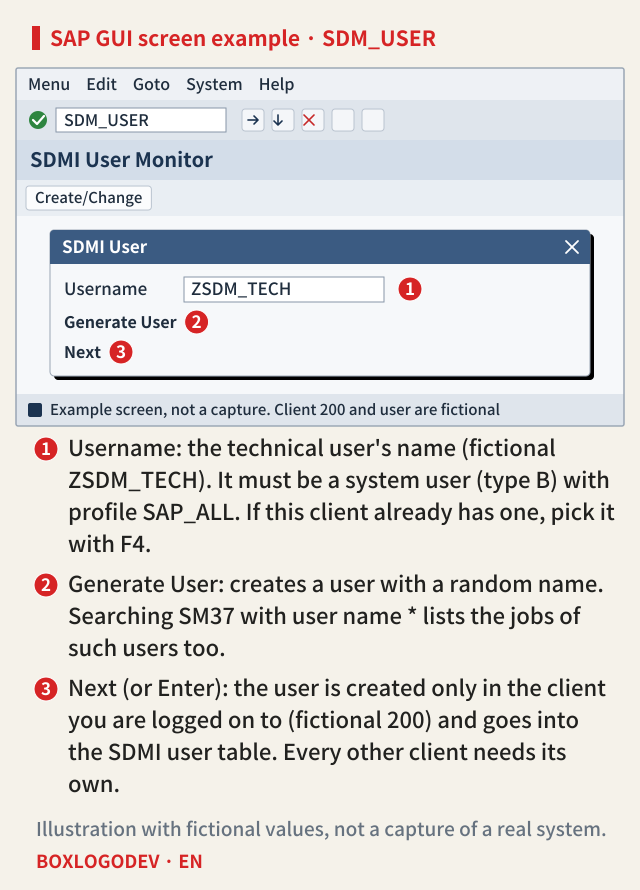
In a client without the user, SDMIs never start and no data moves. Apart from that P-message, nothing warns you; the fact appears only in the system log (SM21). The system log has a limited size, so older messages can be overwritten, and SM21 shows only the last two hours of the local instance by default. The safer route is to open the Create/Change dialog of SDM_USER in each client, then pick the existing technical user with F4 or create one if there is none. SUM collects its P-messages in longpost.log in phase CHK_POSTUP, but what this particular check writes, and in which words, could not be confirmed from public documents.
First, look at the job in SM37
Look at the job schedule first and at the migration status second. The prerequisite is AS ABAP 7.54 or higher, and 7.54 is the ABAP release of S/4HANA 1909. On the SM37 job selection screen, put SAP_SDM_EXECUTOR_ONLINE_MIGR in Job Name and * in User Name. With * every SDM job appears, including jobs of a user whose name Generate User made up. Leave the job status selection as it is. SDM jobs run every 30 minutes, so the start conditions need no change either. Choose Execute and you get the SDM jobs of all clients with their statuses.
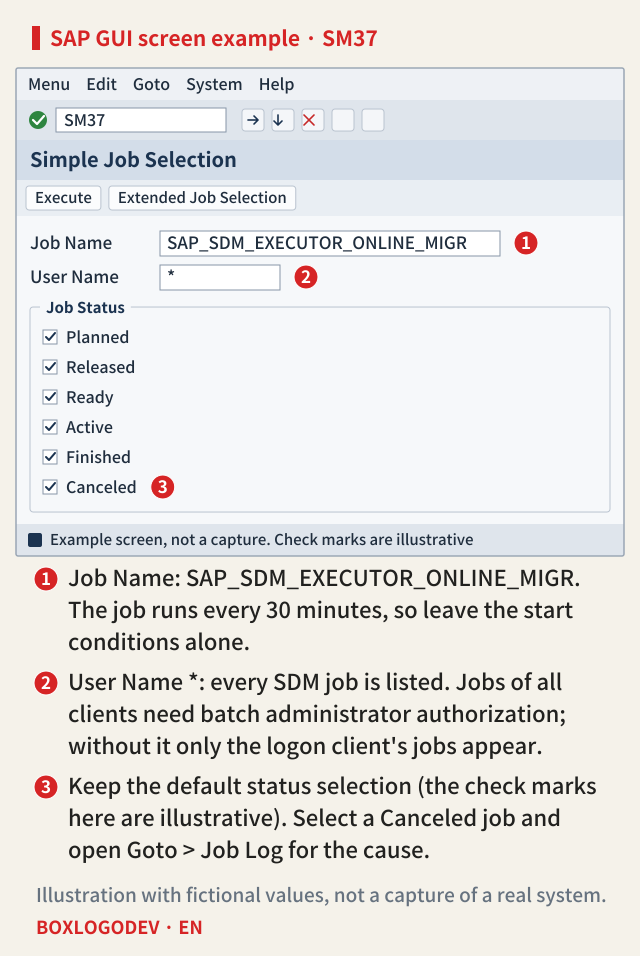
"All clients" has a condition. Without batch administrator authorization you see only the jobs of the client you are logged on to. In authorization object S_BTCH_ADM, value Y of field BTCADMIN is the administrator authorization that covers other users' jobs in every client. SDM jobs belong to the technical user, so opening their job log without Y also takes PROT in S_BTCH_JOB. If a job is Canceled, select it and open Goto > Job Log to find the cause. Canceled means the job ended abnormally, for example when an ABAP program in a job step issues an E or A message.
Reading the status in SDM_MON
Technically, each SDM is one ABAP class. SDM_MON (Silent Data Migration Monitor) shows by default the status of every class in the system that triggers an SDM. There are six statuses. A status with "at least one client" in its name appears as soon as a single client is in that state, and only Finished in all clients means success in every client.
Two statuses count as finished: Finished in all clients, and Not qualified for current target release, which means the migration does not apply to that client. Waiting means a prerequisite is still open, and In process means it is still running. For a running class, select its line and choose Migration Class in all clients > Migration Info for an estimated end date and time. Error means it failed but is being retried automatically; after ten failed runs it turns into Cancelled. A Cancelled class runs no more in that client. The SDMI help pages and the conversion guide checked here do not say how to restart it, and the FAQ (SAP Note 2907976) and the configuration options note (2916801) were not read.
SAP NOTES
Six statuses in SDM_MON
"At least one client" shows as soon as one client is affected
Finished in all clients
- Succeeded in every client
- Counts as finished
Not qualified for current target release
- Does not apply to that client
- Counted with the finished ones
Waiting in at least one client
- A client is waiting for a prerequisite
- Still in progress
In process in at least one client
- Still running in a client
- Migration Info estimates the end
Error in at least one client
- Failed, retried automatically
- After ten failures: Cancelled
Cancelled in at least one client
- No more runs in that client
- Waiting will not finish it
Status names as given in the help page; on-screen text may differ.
If the list is long, switch to the Show Only Qualified Migrations view. It keeps only the migrations that apply to this system and the current release, and unless you switch back, it is also the view you get next time. Whether Not qualified lines disappear from this view could not be confirmed.
What changes when you skip a release
An SDMI can run in uptime for at least one release. Going through every release lets all migrations run in uptime; skipping one changes that. Going straight from S/4HANA 1809 to 2020, the SDMIs of the skipped 1909 run in business downtime unless they can run in uptime on the target release. From start release 2020 on, SDMIs can run in uptime across three releases, so ZDO (Zero Downtime Option) can jump over up to two releases to the third one. Going from 2020 to 2023 is an example.
The opposite choice also exists: finishing the SDMIs inside downtime. According to the SUM 2.0 SP27 guide, it is offered for upgrades to target release S/4HANA 2021 or higher (support package updates of 2021 or higher included), you choose it in the Decision About Silent Data Migrations dialog of the Configuration step (phase SUMASK_SDMI_DECISION), and it does not apply to ZDO. It is therefore not available for the 1809→2020 jump above (target 2020) or for a ZDO move from 2020 to 2023. With it, the SDMIs run in postprocessing phase RUN_SDMI_POST_PROCESSING and are done when business resumes. The cost is downtime: SUM starts the SDMI jobs itself and does not continue until they are done, so downtime grows a lot, and with your resources, migration table sizes, dialog work processes and parallelization settings it can become too long to accept. The batch server group SAP_DEFAULT_BTC must hold instances that can run the migrations, and uptime execution is still the recommended way.
SAP NOTES
When do SDMIs run?
By S/4HANA upgrade path and SUM option
Release by release
- Each SDMI supports uptime for at least one release
- All migrations can run in uptime
1809 → 2020 (skips 1909)
- SDMIs of the skipped 1909
- run in business downtime unless they support uptime on the target
2020 → 2023 (ZDO)
- From start release 2020
- uptime across three releases
- ZDO can jump up to two releases to the third
Forced into downtime
SUMASK_SDMI_DECISION- Offered from target release 2021
- Does not apply to ZDO
- Runs synchronously in RUN_SDMI_POST_PROCESSING
- Downtime grows a lot
Based on the S/4HANA 2025 conversion guide (version 3.0) and the SUM 2.0 SP27 guide. The forced option is not available for the two examples above (target 2020, ZDO).
Three checks before you call it finished
The next upgrade is why this check cannot wait. SDMIs must be finished in all clients before the next release upgrade can start. In a ZDO upgrade, SUM halts with an error in phase PREP_GENCHECKS/RUN_SDM_CHECK_STARTRELEASE when it finds unfinished SDM classes, and it goes on only once every class is finished.
So fix the order. First, in each client, pick the technical user with F4 in SDM_USER or create one; whatever was chosen in SUM, look in the update log for a P-message about the technical user. Second, search SM37 for SAP_SDM_EXECUTOR_ONLINE_MIGR with user *, and open the job log of any Canceled job. Third, check in SDM_MON that every line is Finished in all clients or Not qualified for current target release. If a Cancelled line remains, do not record the migration as finished; find the cause with the help of the FAQ note 2907976 or SAP support. In the upgrade completion record, write the date the third check passed, not the date SUM ended.
Add your perspective.
Share a question, another approach, or something you have tried.
Checking sign-in…
Loading comments…