Say you sent a 10,000,000 KRW down payment to the fictional vendor 300100 and posted it. When you then run FBL1N for open items in company code 1000, only two invoices come back. The down payment has not vanished; it was posted as a special G/L transaction, which is kept apart from ordinary postings. After reading this you will know which box on the initial screen brings the down payment into the list, how to tell the down payment line apart, and why a down payment request does not change the balance. Vendor and document numbers and all amounts are invented examples.
A down payment is kept apart as a special G/L transaction
In the standard system, a down payment made to a vendor is posted with posting key 29 plus a special G/L indicator. Posting key 29 means a debit on the vendor account; the indicator says what kind of down payment it is. In the standard system, A marks an ordinary down payment and I one made for intangible assets. The posting goes to the vendor account, to the down payment special G/L account and to the bank G/L account.
A line with an indicator does not go to the reconciliation account named in the vendor master. The system takes the usual reconciliation account together with the special G/L indicator and finds another reconciliation account, the special G/L account, for it. With the sample numbers in SAP Help, if payables sit on reconciliation account 160000, general down payments build up on a separate account such as 159000, and such accounts appear on their own lines in the balance sheet.
So the down payment is recorded on the vendor account but is not mixed with ordinary postings. Line item display shows special G/L transactions separately from ordinary postings, and those other than noted items are also listed separately in the balance display. FBL1N is the vendor line item report (program RFITEMAP). Besides open and cleared items, the lines that line item display can show come in kinds such as noted items, parked items and special G/L transactions.
Which boxes to tick on the FBL1N initial screen
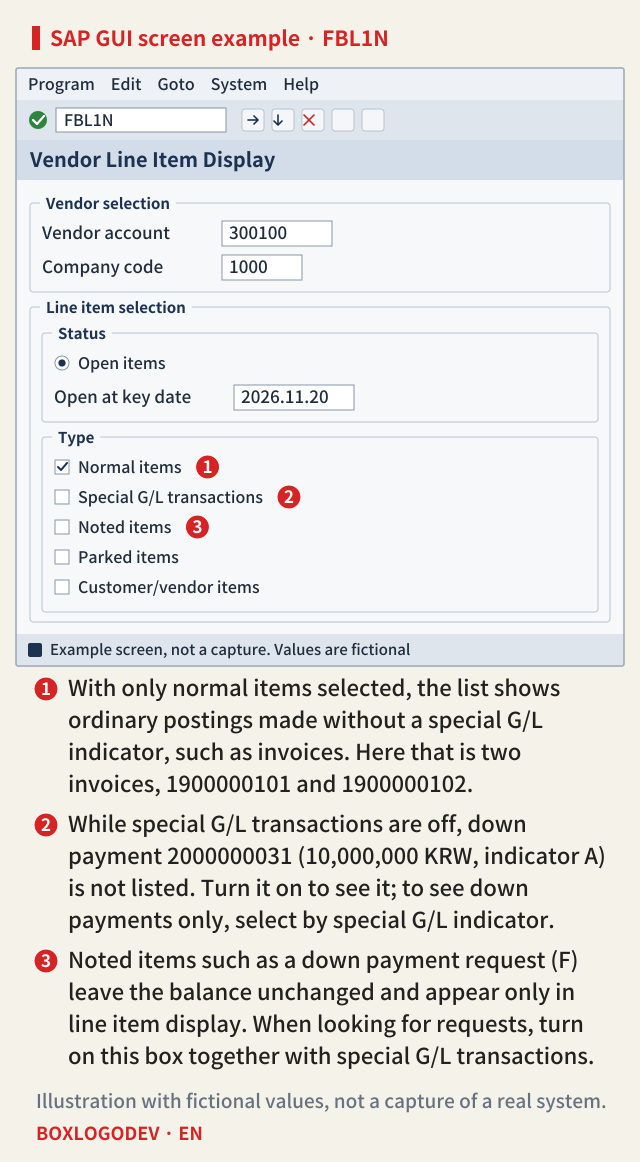
The figure shows the initial screen just before it runs with only normal items ticked. (1) With normal items alone, the list holds ordinary postings made without a special G/L indicator, such as invoices. In this example that is two invoices, 1900000101 and 1900000102.
(2) The down payment joins the list only when the special G/L transactions box is ticked. To see down payments alone, select them by special G/L indicator. Whether this box starts out ticked can depend on the system and on a saved variant, so look at the checkboxes before you run the report.
(3) Noted items are lines that do not change the balance. The down payment request discussed below is one of them.
What changes in the list once the box is ticked
SAP NOTES
Same vendor, one checkbox apart
Fictional vendor 300100 · company code 1000 · open at 2026.11.20 (amounts in KRW)
Normal items only
- 1900000101 · PK 31 · -22,000,000
- 1900000102 · PK 31 · -8,800,000
- No down payment line in the list
Special G/L transactions on as well
- 1900000101 · PK 31 · -22,000,000
- 1900000102 · PK 31 · -8,800,000
- 2000000031 · PK 29 · A · +10,000,000
- Posting key 29 and special G/L indicator A mark the down payment
PK is the posting key; the A after PK 29 is the special G/L indicator. The heading and position of the column that shows it can differ by layout and release. Credits (invoices) are shown with -, debits (the down payment) with +. Numbers and amounts are invented; this is not output from an SAP system.
Run it again with special G/L transactions ticked and one more line, down payment 2000000031, appears under the two invoices. You can tell the down payment line by its posting key and special G/L indicator. In the figure those marks are posting key 29 and special G/L indicator A. Which column of the list shows the indicator, and under what heading, can differ by layout and release. The figure writes the invoices, which are credits, with − and the down payment, a debit, with +.
Even when they share one list, the invoices and the down payment remain separate open items. When you pay an invoice from a vendor who already received a down payment and want to settle the down payment too, you have to pick it along with the invoice. While entering the payment, before moving on to process open items, enter the down payment indicators (standard examples: A, I, M, V) in the special G/L field of the selection screen; only then are down payments offered. There is a hint at invoice posting as well: the standard system is set to show a message when you post an invoice to a vendor that already has a down payment.
Why does a down payment request (F) leave the balance alone?
SAP NOTES
Where each kind of line shows up
Normal item · special G/L (A) · noted item (F), fictional vendor 300100
Normal item · invoice
- Posting key 31 · no special G/L indicator
- Goes to the reconciliation account in the vendor master
- Balance: counted with ordinary postings
- List: shown with normal items
Special G/L · down payment A
- Posting key 29 · special G/L indicator A
- Goes to another reconciliation account (special G/L account)
- Balance: counted, but apart from ordinary postings
- List: shown only with special G/L transactions on
Noted item · down payment request F
- Special G/L code F · no offsetting entries
- Balance: unchanged
- List: visible only in line item display
- Look for it with noted items and special G/L on
A, F and posting keys 29 and 31 are standard-system examples. Check the indicators and keys your system uses in its configuration. Based on SAP Help Portal, S/4HANA 2025 FPS02.
A down payment request is a document the payment or dunning program refers to when it handles down payments. When you enter one, you give the target special G/L indicator (standard example: A) under which the real down payment will be posted later, and the request itself is identified by special G/L code F. A request document carries no offsetting entries.
In the standard system, down payment requests are kept only as noted items. A noted item does not change the account balance; the system only links the line to the account. So if you enter a request (F) for a 5,000,000 KRW down payment due next month, the vendor balance stays the same and the request can be seen only in line item display. The special G/L account that holds down payment requests keeps neither a balance nor transaction figures, so it too has to be read through its line items, and displaying it lists the requests of every vendor at once.
If a request does not show up in the list, tick noted items and special G/L transactions together and run again. To see requests alone, select them by special G/L code F.
Check indicators and box names in your own system
A, I, M, V and F are standard-system examples. A company can create its own special G/L indicators per account type, and for each one it decides whether it is a noted item, whether it counts in the customer credit limit check, and whether it is a down payment, a bill of exchange or another kind of transaction. If an unfamiliar special G/L indicator shows up in the list, look at that indicator's settings first.
This explanation is based on the SAP S/4HANA 2025 FPS02 on-premise documentation. SAP Help for the same release (Mass Changes to Line Items) lists the Type boxes of the customer/vendor line item screen (menu Account → Display/Change line items) as Normal items, Special G/L transactions, Noted items, Parked items and Customer/vendor items, and the figure uses those names. They were not compared with a real FBL1N screen, so labels can differ by release and settings. The Line Item Browser (FBL1H) and the Fiori apps were not compared, and none of this was run on an SAP system.
When a vendor balance is not what you expect, tick normal items, special G/L transactions and noted items one at a time, then read the posting key and special G/L indicator of each new line; that tells you whether the line counts as an ordinary posting, counts apart from ordinary postings, or stays out of the balance. A down payment request (F) line is a noted item: even when it shows in the list, it is not part of the account balance.
Add your perspective.
Share a question, another approach, or something you have tried.
Checking sign-in…
Loading comments…